 GIScases
Worked example: making a task
For creators — everything so far, on the actual screens: from a blank map to an assigned, scored task.
Seven lessons built the toolkit: coordinates, scale, the vector primitives, layers, buffers and overlay. A GIScases case uses them all at once. Here is one solved on the real interface, step by step — what to do, and what each part of the screen is for.
1Open GIScases
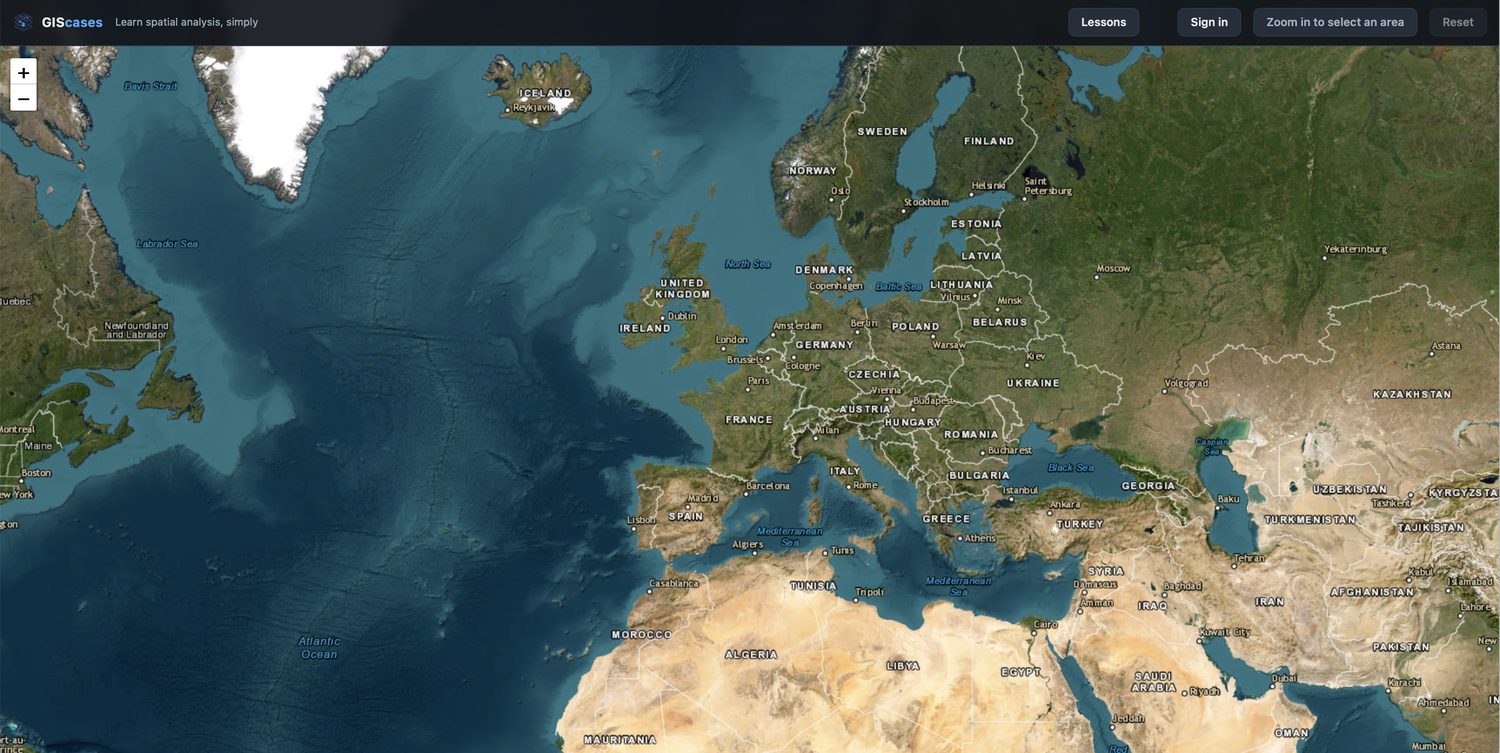
You begin on a satellite map of the world that you can pan and zoom. Along the top are Lessons (this course) and, once you are signed in, Classes and My tasks. The button at the top right — Zoom in to select an area — is where every case starts.
2Sign in
A creator signs in through Cloudflare Access — with a Google, Microsoft or Cloudflare account, or a one-time code by email. Students need no account at all: they just open the personal link you send them, so nothing here stands between a class and a case.

3Select the study area
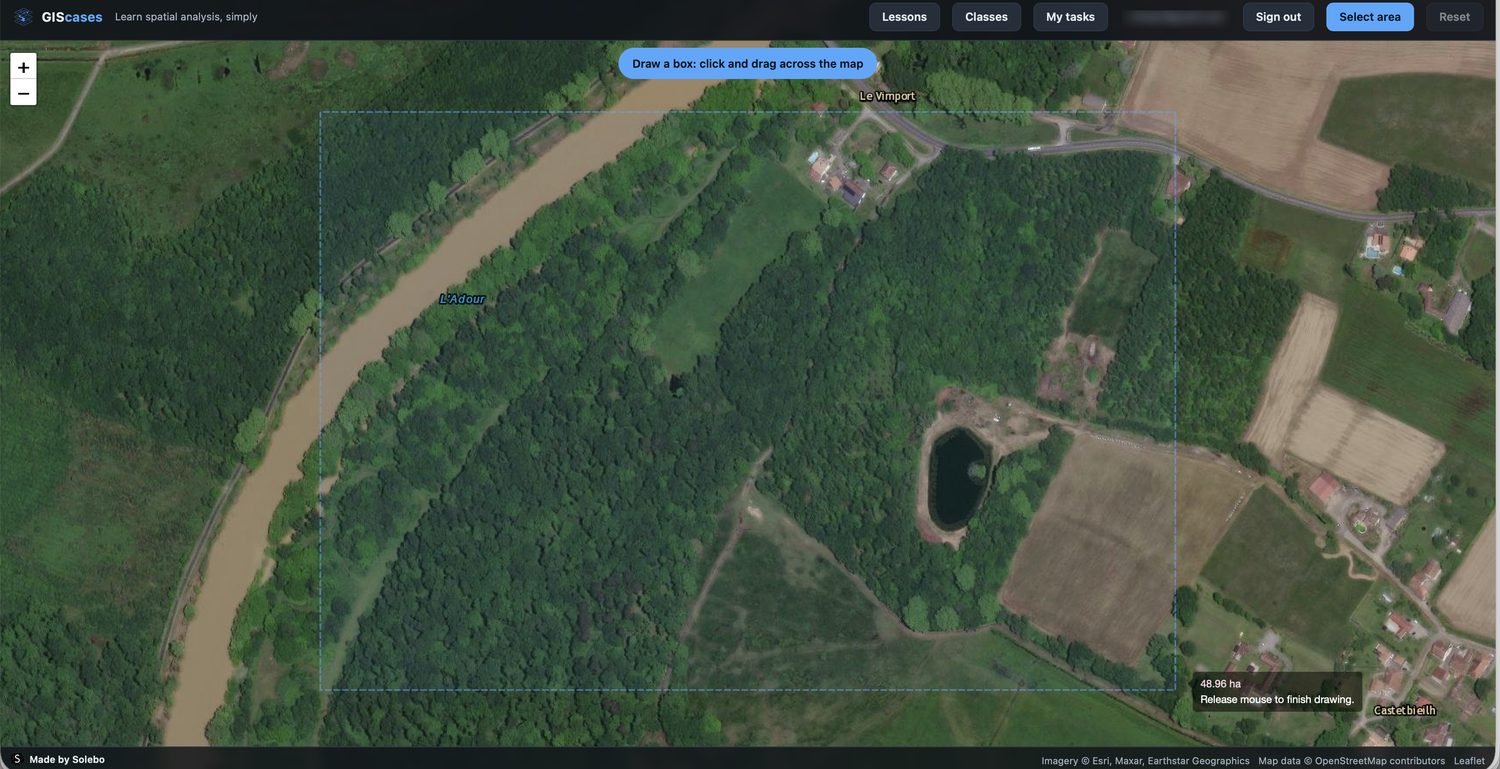
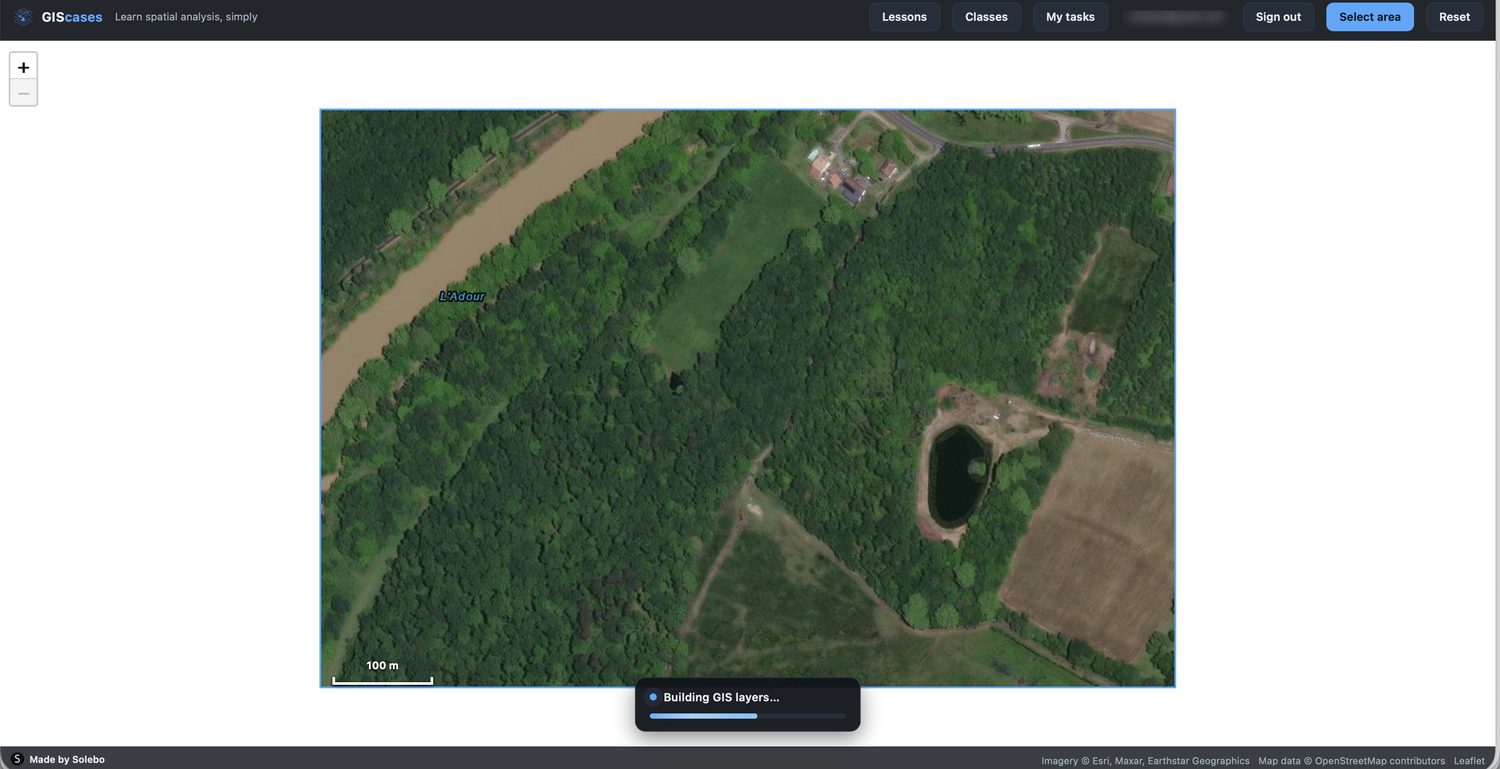
First zoom and pan the map to the place you want to work in. While you are still too far out, the top-right button reads Zoom in to select an area and does nothing; the moment the scale is close enough to pick out a real site (Lesson 3), it changes to Select area. Click it and drag a box across the map. The view locks to that extent and a scale bar appears — you are now working at a definite scale. GIScases then builds the GIS layers for the area: it traces the roads, water, buildings and woodland out of the satellite image into clean vector layers (Lessons 4–5), all sharing one coordinate frame (Lesson 2).
4Read the case and its layers
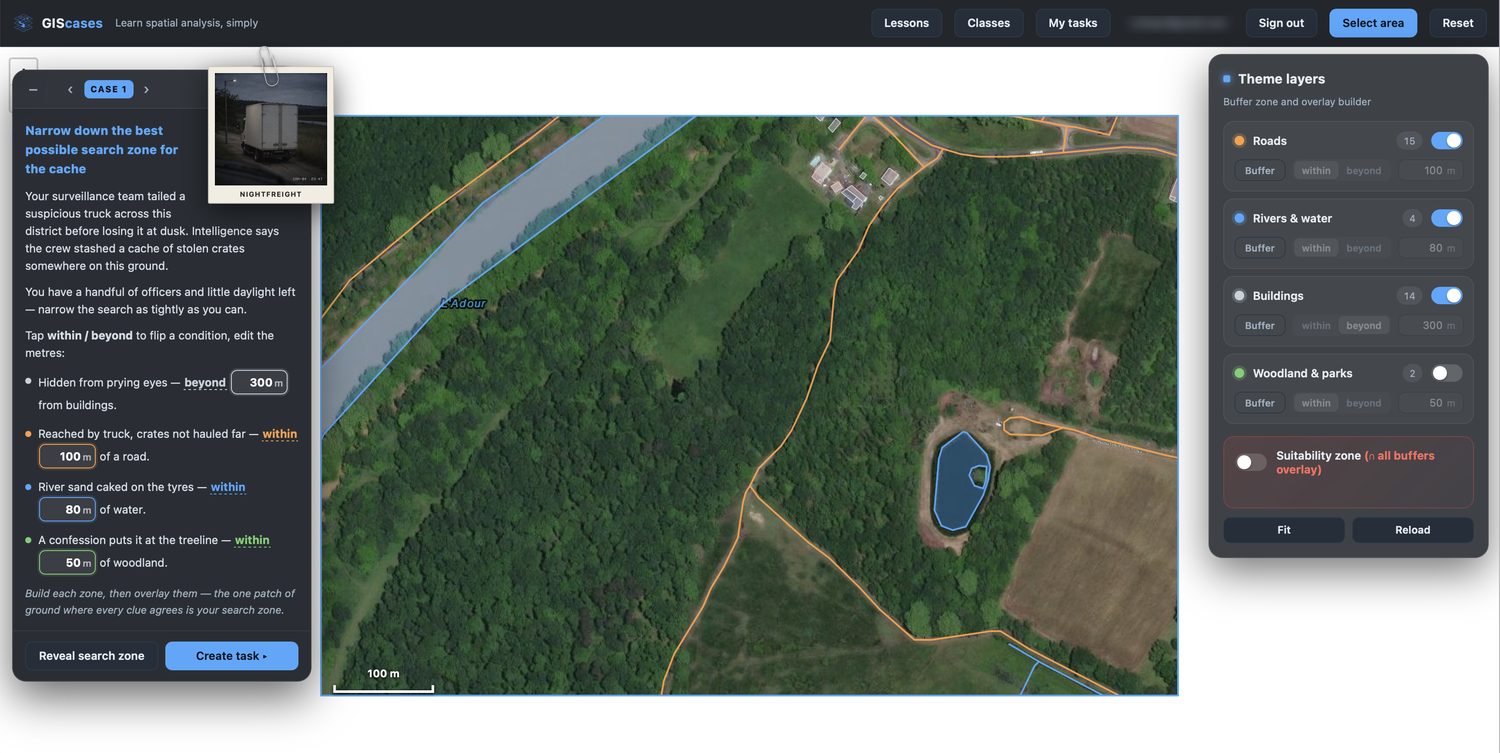
Now the working screen, split in two. On the left is the case: its objective and a list of clues, each a distance rule — within or beyond so many metres of something (near a road, away from buildings, and so on). On the right is the Theme layers panel — Roads, Rivers & water, Buildings, Woodland & parks — one thematic layer apiece (Lesson 5), each with its own buffer distance and a within/beyond toggle (Lesson 6). The map in the middle shows those layers drawn over the base.
5Or build your own case
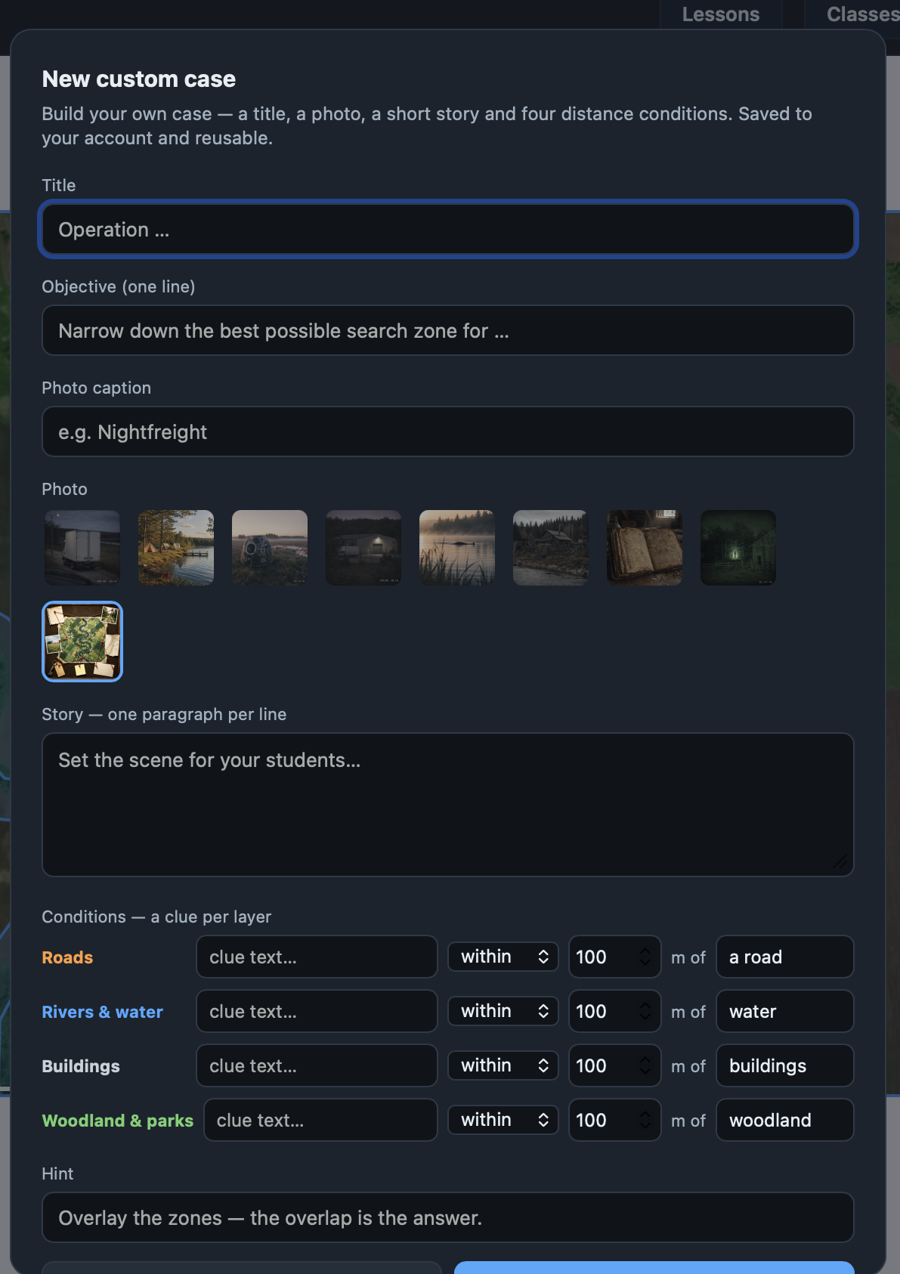
The built-in cases are only a starting point. On the case card, + Custom case opens a builder where you author your own: a title and a one-line objective, a photo with its caption, a short story to set the scene, and — the heart of it — four distance conditions, one per thematic layer. Each condition is the same within / beyond so-many-metres rule the students solve against (Lessons 6–7): here, within 100 m of a road, of water, of buildings and of woodland. Saved cases live on your account — reusable, editable (✎) or removable (🗑) — and appear on the card numbered My Case 1, 2, 3…
6Buffer and overlay to the answer
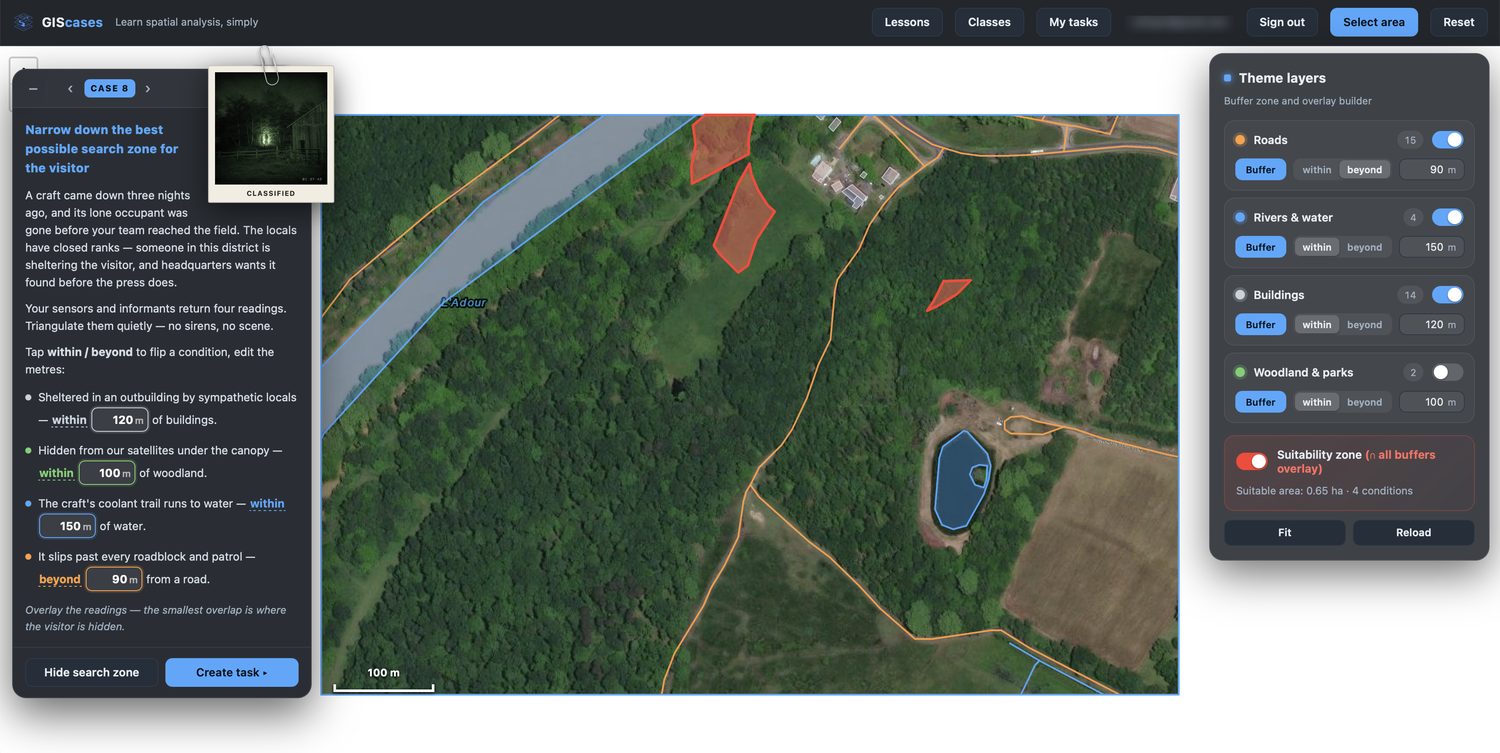
Switch on each layer’s Buffer, then turn on the Suitability zone. GIScases intersects all the “within” zones and subtracts the “beyond” ones (Lesson 7) — the one patch of ground where every clue agrees. The result is drawn in red on the map, and the panel reports its area and how many conditions it meets.
7Assign it to students
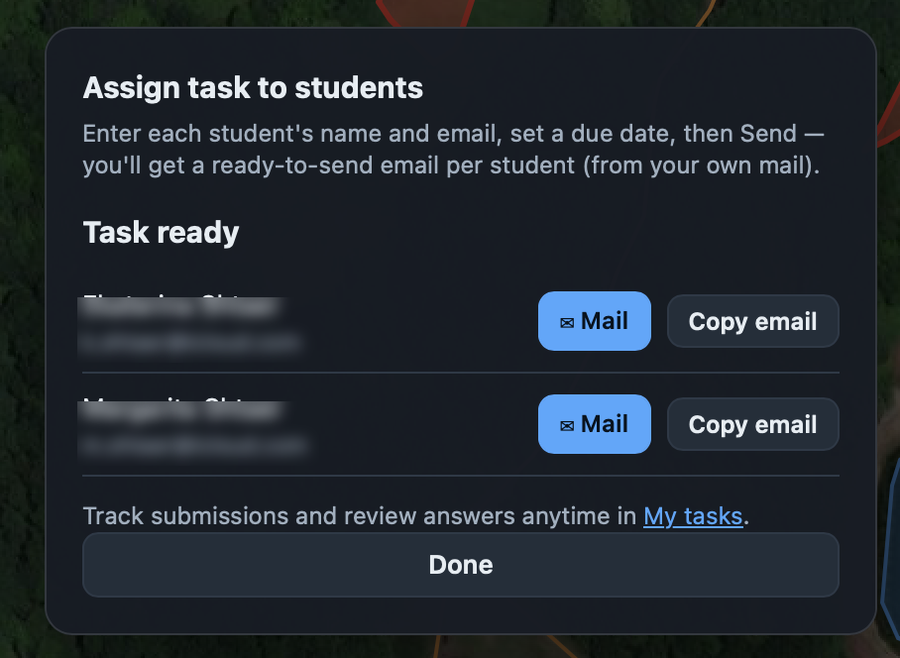
Once the case works, Create task turns it into an assignment. GIScases does not send anything itself — you deliver the invitations from your own mailbox. For each student it prepares a ready-made message: click Mail and your usual mail app opens with the email already composed and that student’s personal link in it. Edit the wording if you like, then send it yourself — one message per student, so every invitation arrives from your own address (or use Copy email to paste the link elsewhere). The students open their link, solve the same case in their browser, and submit their zone; you track submissions later in My tasks.
Simple or advanced? Before you send, the dialog lets you choose the task type — Simple or Advanced. In an Advanced task the students get only the satellite image and must trace the four layers themselves before they can buffer — it exercises the whole workflow, digitising included (Lessons 4–5). In a Simple task GIScases hands them the layers you already built, ready-made, so they go straight to the buffers and overlay — it focuses on the spatial reasoning alone (Lessons 6–7). Same case, same correct answer; only how much the students draw differs. The type is shown to the student at the top of their screen, and to you on every task in My tasks and in review. Pick advanced for a fuller exercise, simple for a shorter one or a younger class.
8Review and score
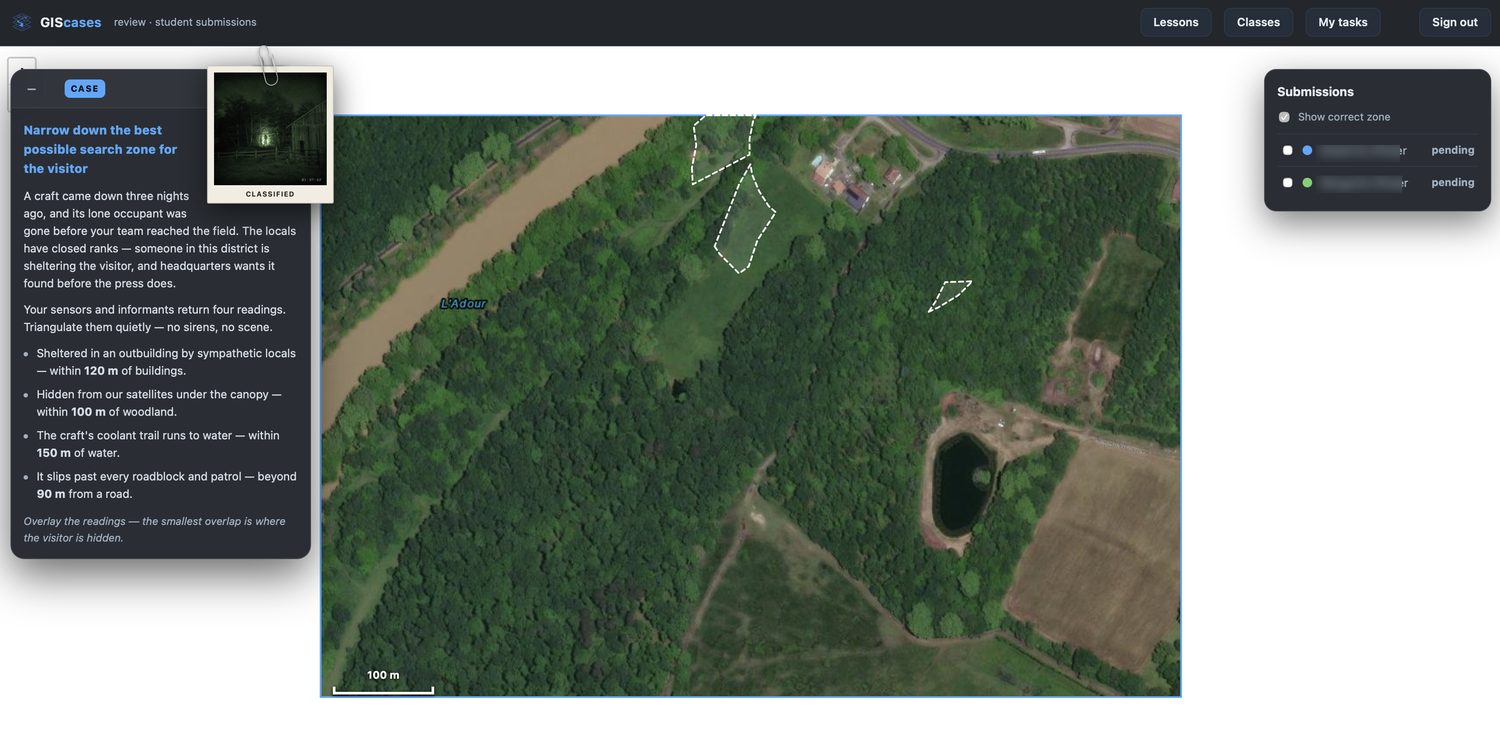
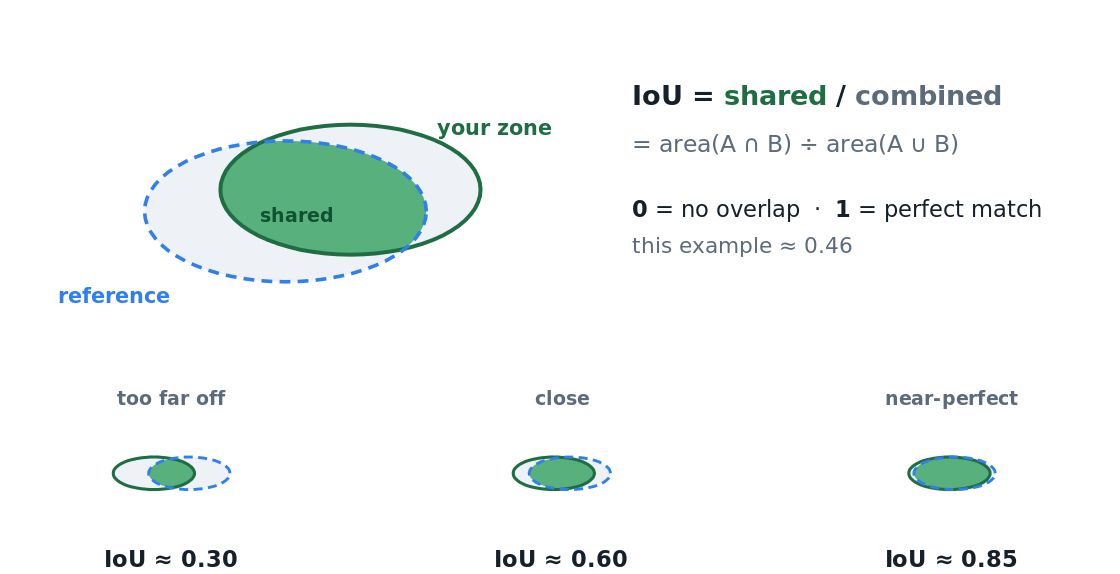
When answers come in, the review screen overlays the correct zone — the dashed reference — with each student’s submission, and scores every one automatically by IoU: Intersection over Union, the classic Jaccard index.
IoU measures how well two areas match: the area they share divided by the total area they cover together.
It runs from 0 (no overlap) to 1 (a perfect match). Being a ratio, it penalises a zone that is too big just as much as one that is too small.
That is the whole of a GIS, in miniature
Look back at the seven screens: data became layers, layers were shaped by operations, and the operations produced an answer to a real question — then that answer was measured. Every case in GIScases runs this same arc, the same one a professional runs to site a hospital, route a road or map a flood. You now have the whole toolkit; the rest is practice.
The workflow, end to end
- Select an area — zoom and drag a box; the extent and scale lock, and GIScases traces the satellite base into vector layers.
- Read the case — each clue is a within/beyond distance rule on a thematic layer.
- Or build your own — + Custom case authors a title, story, photo and four per-layer distance conditions; saved to your account and reusable.
- Buffer & overlay — set each layer’s buffer, then the suitability zone intersects the “within” zones and subtracts the “beyond” ones — the red patch is the answer.
- Assign — turn the case into a task; each student gets a personal link, no account needed.
- Review — submissions are overlaid on the reference zone and scored by IoU (Jaccard), shared area over combined area.
References
- Jaccard, P. (1912) ‘The distribution of the flora in the alpine zone’, New Phytologist, 11(2), pp. 37–50.
- Longley, P.A., Goodchild, M.F., Maguire, D.J. and Rhind, D.W. (2015) Geographic Information Science and Systems. 4th edn. Hoboken, NJ: Wiley.
- Bolstad, P. (2019) GIS Fundamentals: A First Text on Geographic Information Systems. 6th edn. Ann Arbor, MI: XanEdu.
- McHarg, I.L. (1969) Design with Nature. Garden City, NY: Natural History Press.
 Made by Solebo
GIScases · Learn — free to use in your classroom.
Made by Solebo
GIScases · Learn — free to use in your classroom.