 GIScases
Worked example: solving a task
For students — you were sent a link to a task. Here is how to solve it, start to finish.
Your teacher sent you a personal link. You don’t need an account or any software — just open the link in a browser. Read the clues, mark the zone where the answer must be, and submit it.
How to tell which you have: if you see drawing tools and a “Trace the layers” panel (Line, Points, Brush…), it’s an Advanced task — start by digitising. If the buffer-zone panel is available right away, it’s a Simple task — skip straight to step 3.
1Open your link and read the case
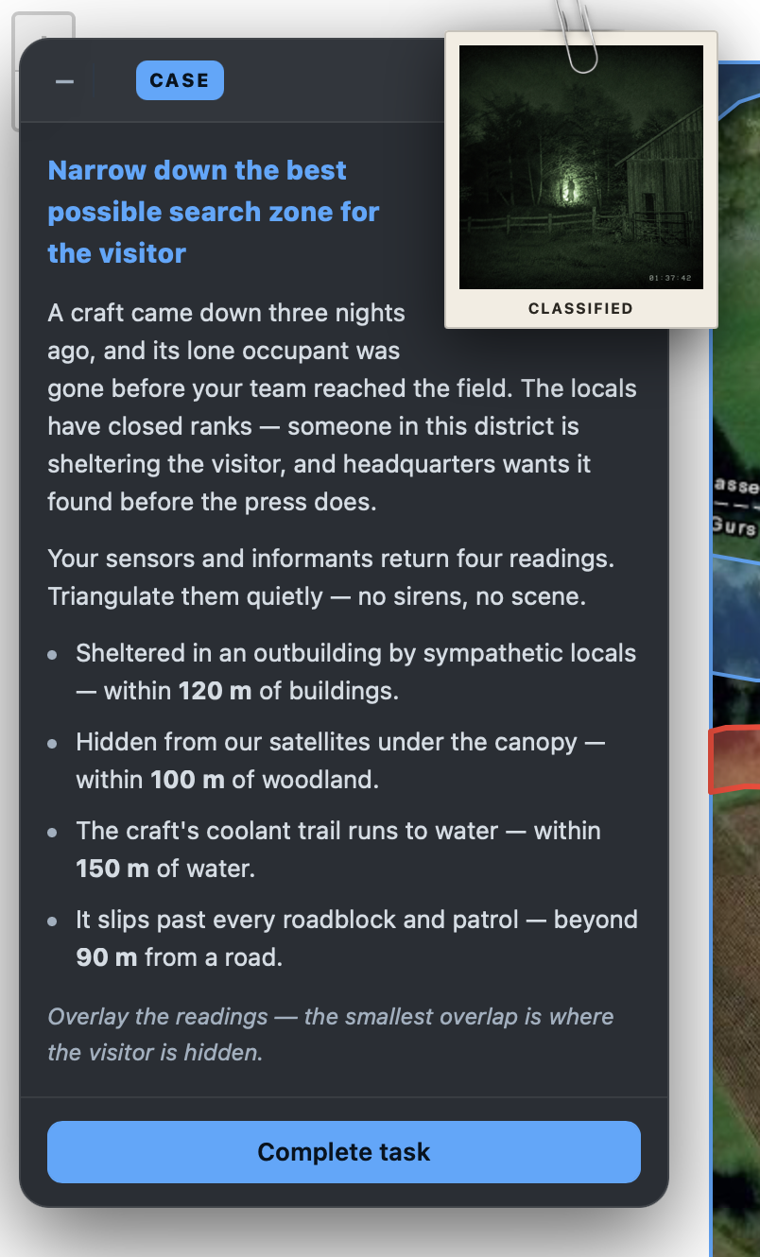
The link opens your case straight away — no install, no sign-in. On the left is the case: a short story and a set of clues. Each clue is a distance rule — the answer lies within or beyond so many metres of something (a road, water, buildings, woodland). Read them all before you start; together they pin down one small area.
2Advanced task: trace the layers first
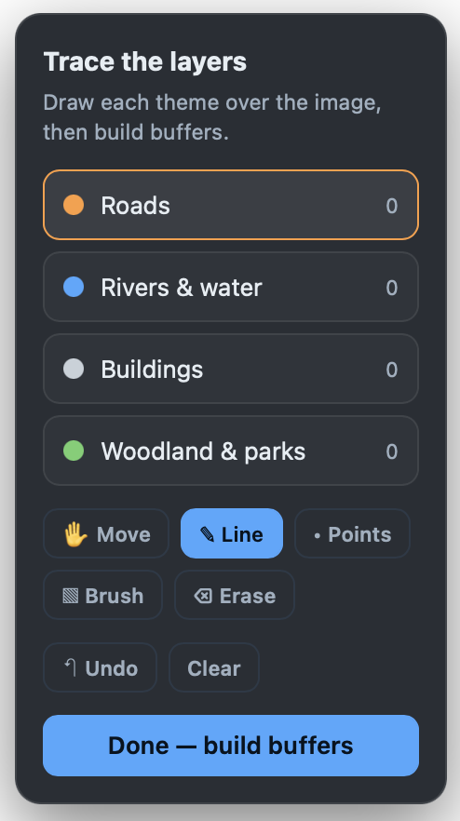
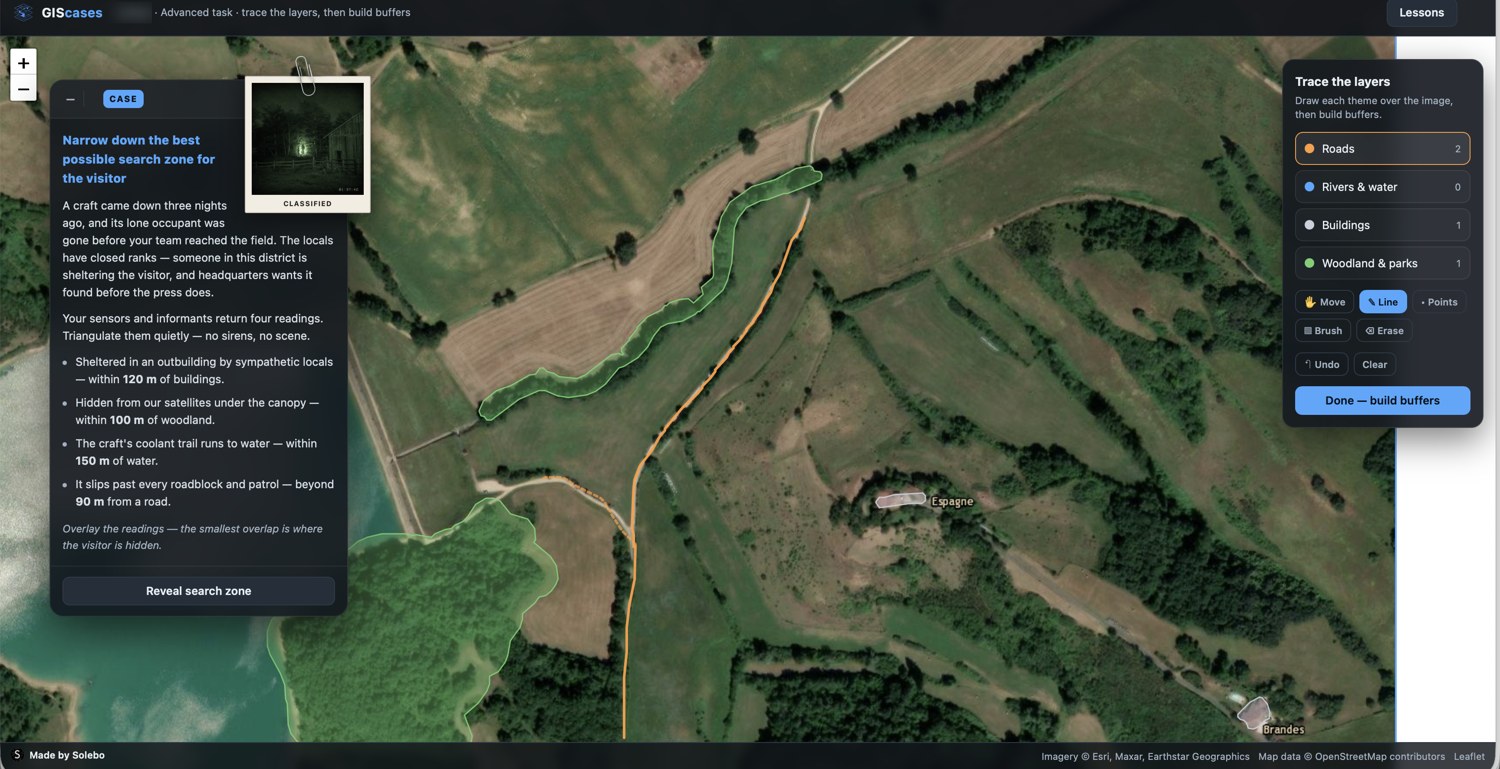
If the top of the screen says Advanced task, you begin by drawing the map yourself. The Trace the layers panel lists the four themes — Roads, Rivers & water, Buildings, Woodland & parks. Pick a theme, then draw it over the satellite image: Line for free-hand, Points for click-by-click, Brush to paint an area, Erase and Undo to fix mistakes. When every theme you need is traced, press Done — build buffers. (A Simple task skips this step entirely — the layers are already there.)
3Set the buffers
Now the Theme layers panel on the right is your workbench. For each clue, switch its layer on, press Buffer, and set the distance and the within / beyond direction to match the clue exactly. Each buffer shades the ground that obeys that one rule — you can see the coloured bands appear on the map.
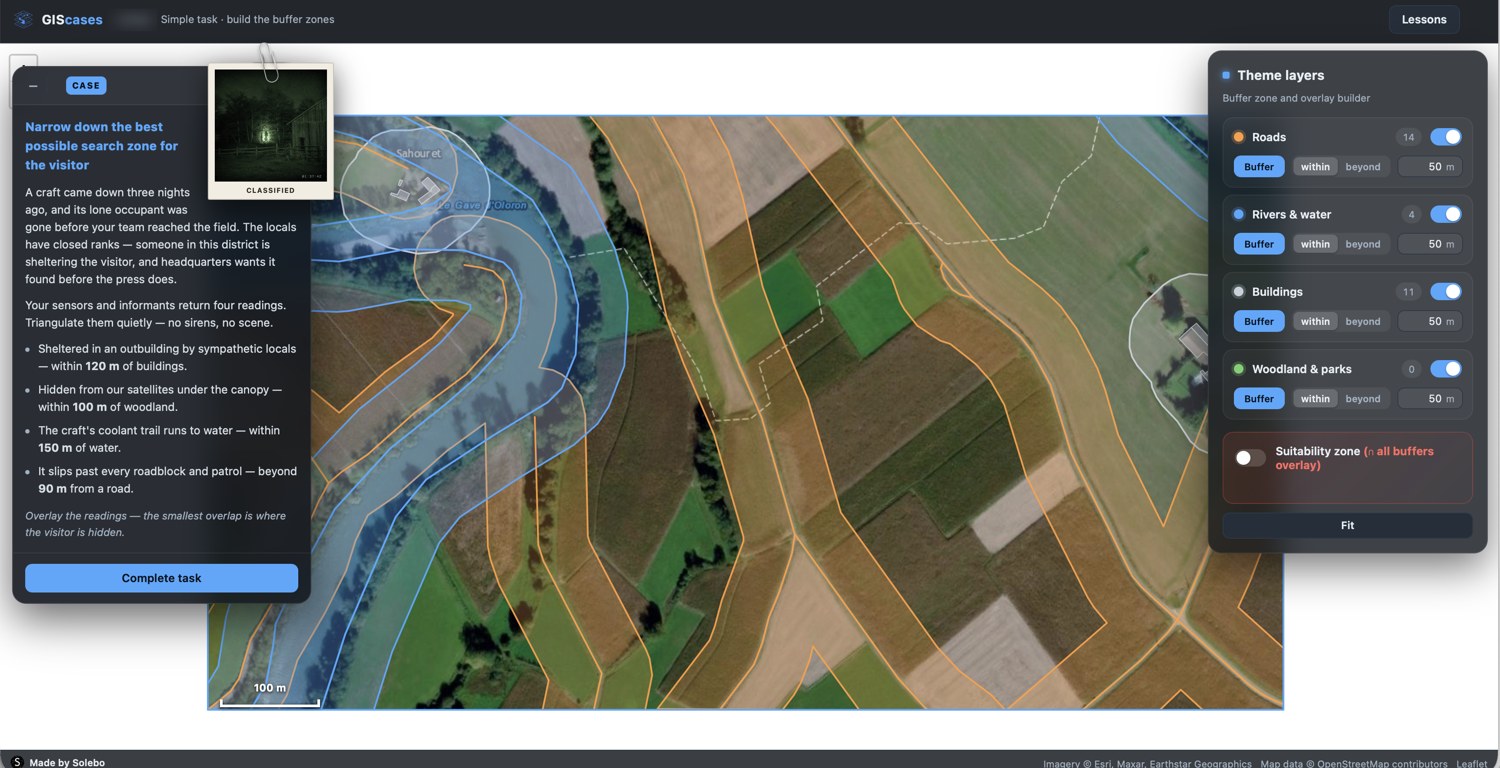
4Overlay — find the answer
Turn on the Suitability zone. GIScases intersects all your “within” buffers and subtracts the “beyond” ones, leaving the one patch of ground where every clue agrees at once — drawn in red. The panel reports its area and how many conditions it meets. That red patch is your answer; make it as tight as the clues allow.
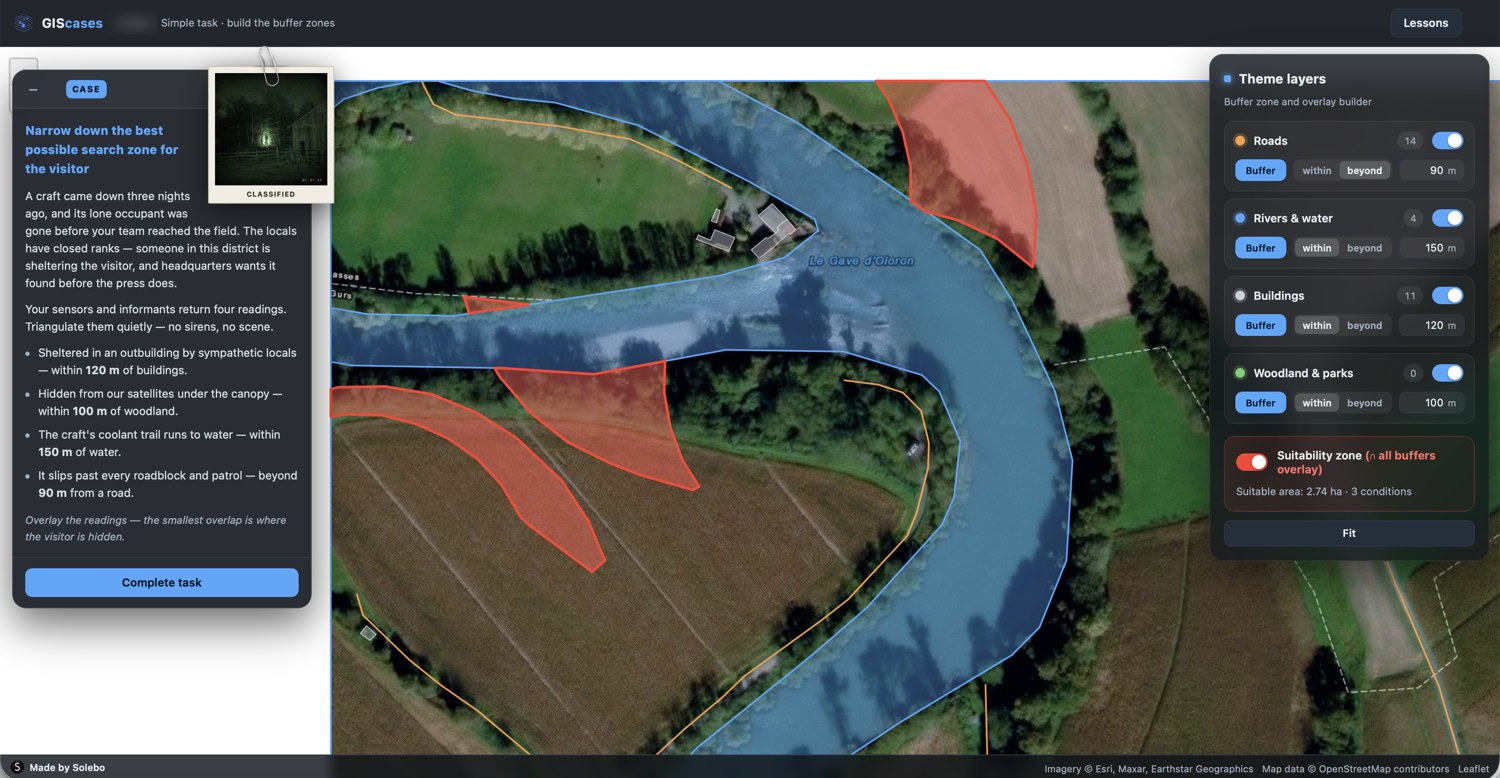
5Submit
When you are happy with the zone, press Complete task. Your answer goes to your teacher and is scored automatically against the correct zone. Note that once you submit you can no longer edit it — so check your buffers first. That’s it: you’ve solved a real GIS problem.
 Made by Solebo
GIScases · Learn — free to use in your classroom.
Made by Solebo
GIScases · Learn — free to use in your classroom.